
This guide focuses on “cancel subscriptions with Muse” and turns the question into practical steps you can check.
01 | Build the list before canceling anything
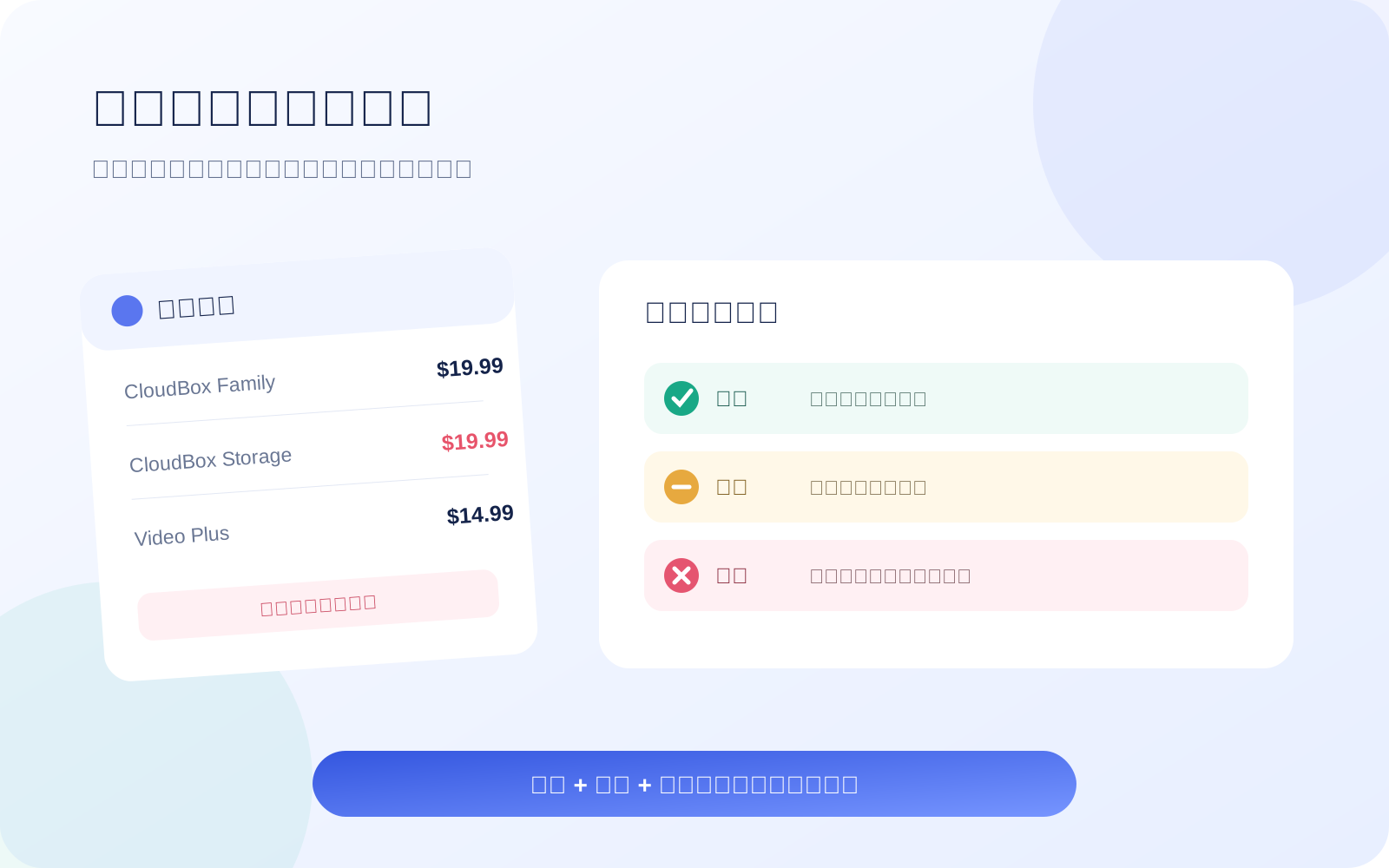
X author @Musecases shared a story about three duplicate subscriptions across a family's Amex statements and claimed that Muse canceled them, saving $300 a month. The story captures a real problem, but it remains one social-media account; MuseVIP did not independently inspect the family's statements or cancellation records.
Use the idea in read-only mode first. Ask Muse to find the merchant, amount, billing frequency, most recent charge, and next renewal from the receipts, renewal messages, or redacted statements you explicitly provide. Do not sign in or cancel during this pass.
02 | Match the statement, email, and account page
One service can use a parent-company name on the card statement, a product name in email, and a plan name inside the account. Keyword matching alone can turn a legitimate charge into a false duplicate. Keep three pieces of evidence for each row: the actual charge, the subscription or renewal message, and the current plan in the provider account.
Write “needs review” when the evidence does not line up. Two similar charges may belong to different family members, or one may be the base plan and another an add-on. Identify the account and email before grouping them.
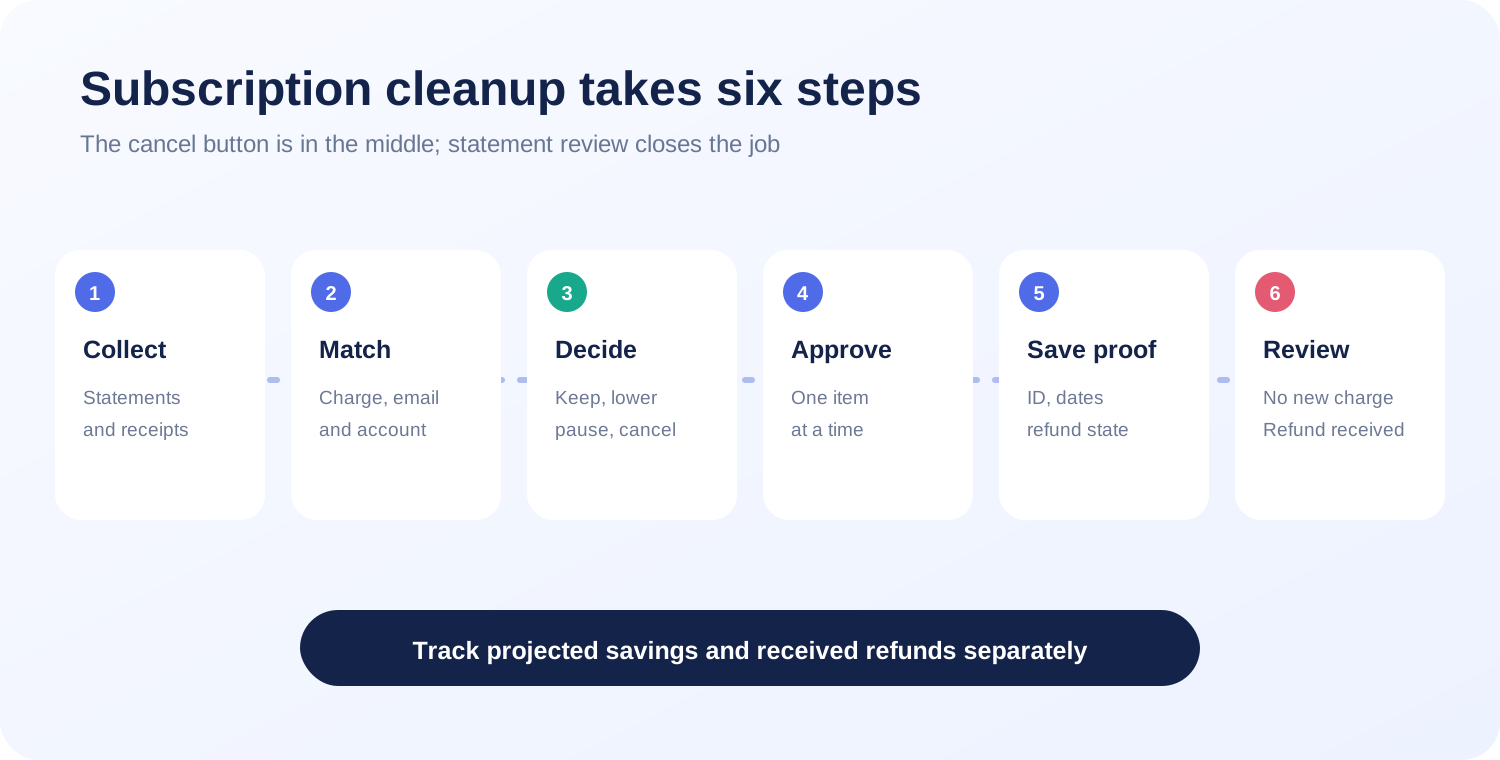
03 | Sort items into keep, downgrade, pause, and cancel
A rule such as “cancel anything unused for 90 days” can remove cloud storage, family sharing, security software, or an annual service you still need. Ask Muse to show recent-use evidence, family members, remaining benefits, and replacement cost, then label a recommendation for you to decide.
Keep a service that is used and fairly priced. Downgrade when the features exceed your needs. Pause seasonal services. Cancel a duplicate, unused, or newly overpriced plan. Treat a free trial separately and record the conversion date.
04 | Review losses and the refund window first
The FTC advises consumers to find the provider's cancellation instructions, keep a copy of the request, and monitor card or bank statements afterward. Rules vary by provider and country, so check the live terms and local consumer guidance.
- Does access end immediately or at the end of the paid period?
- Can an annual payment be refunded in full or in part, and within what window?
- Will files, points, warranty coverage, family members, or history disappear?
- Are turning off renewal and closing the account separate actions?
- Will a bundle discount, device financing, or another linked price change?
05 | Approve one cancellation at a time
Have Muse state the service, account email, plan, current amount, next charge date, effective cancellation date, and whether a refund will be requested. Review one item and approve one item. Avoid a broad instruction to cancel everything it considers unused.
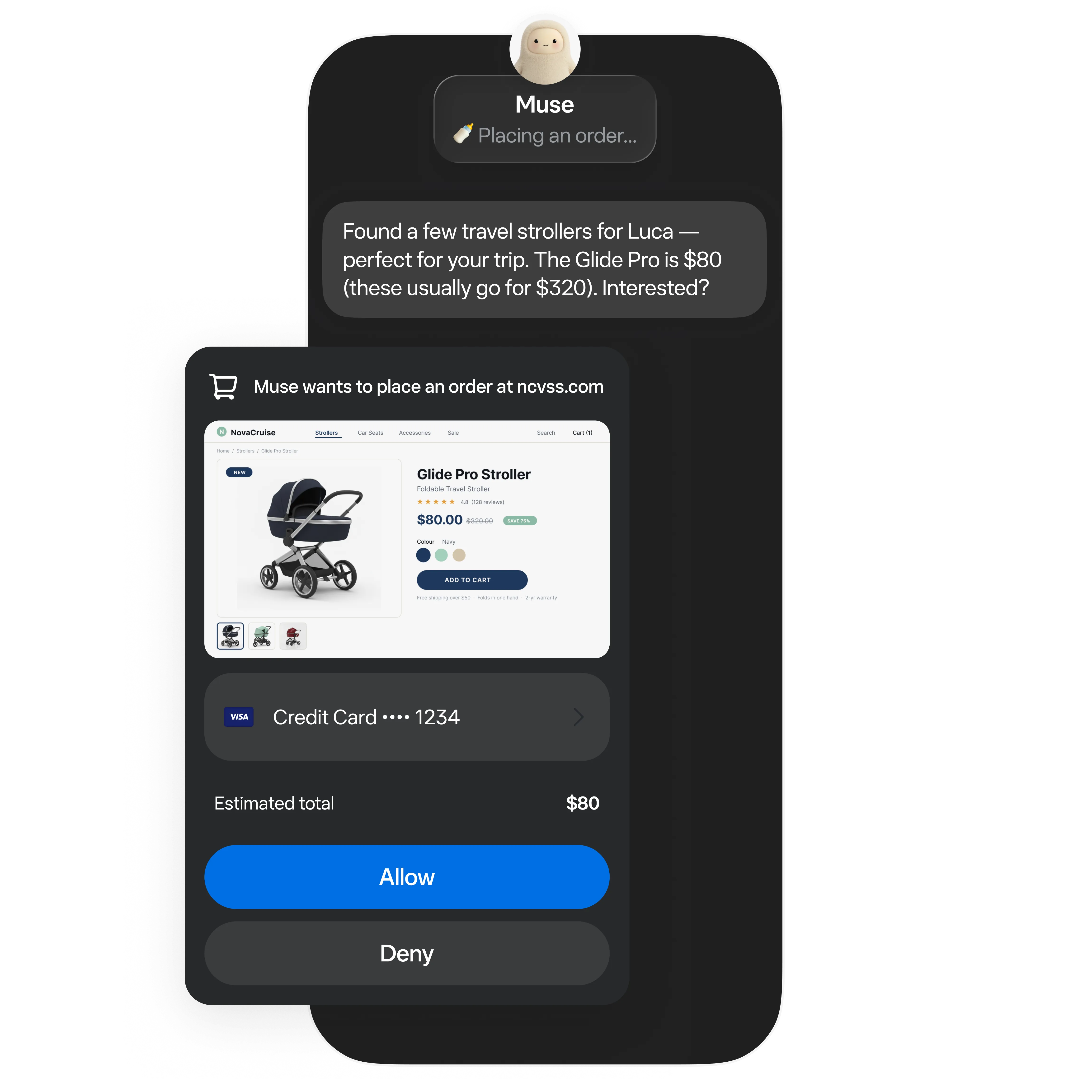
Meta says Muse can browse, fill forms, and negotiate, and that it returns for approval when a sensitive action requires it. Meta also says agents can still make mistakes. The exact cancellation capability and confirmation card depend on the current service, region, and account.
06 | Take over for codes and important refund decisions
Some services cancel in the account page; others open support chat or request an email code. Enter codes, passwords, and payment details yourself on the legitimate page. If support offers a retention deal, have Muse list the new rate, duration, return-to-standard-price date, and cancellation conditions before you choose.
Track a refund separately. Stopping a future renewal does not refund the last charge, and a support promise is not money received. Record the amount, processing date, expected arrival, and case number. Keep the state as “requested” until it reaches the original payment method.
07 | Save four records after cancellation
Open the original card, bank, or payment account on the review date. A completed Muse task does not prove that billing stopped. The FTC recommends retaining records; if charges continue, follow the provider, card issuer, and local dispute process.
- The provider's confirmation page or email.
- The effective date, access end date, and last usable day.
- Refund amount, method, expected arrival, and case number.
- The original next-charge date and a date to review the statement again.
08 | A prompt you can adapt
Start with a narrow period and redacted statements or a dedicated folder of subscription receipts.
- Read only the [date range] statements, receipts, and renewal emails I provide. List possible subscriptions. Do not sign in, cancel, contact a provider, or request a refund yet.
- For each item, show service, statement merchant, amount, frequency, last charge, next renewal, account, use evidence, and source. Mark mismatches as “needs review.”
- Recommend keep, downgrade, pause, or cancel. Explain effects on family sharing, files, points, discounts, and refunds. Do not decide for me.
- After I choose one item, open the official account page and show effective date, remaining access, refund terms, and the exact action. Request approval for one subscription at a time.
- Save the confirmation and set a statement-review date. Stop for passwords, codes, payment details, or dispute submission so I can handle them.
09 | Finish with one auditable table
Keep the service, previous monthly cost, decision, action date, effective cancellation date, refund state, confirmation number, and review date. Put projected monthly savings and money actually refunded in different columns; future savings and received refunds are different results.
This workflow covers subscription auditing and cancellation verification. It goes deeper than a general plan comparison and stops before a separate support dispute. Identify the duplicate, approve each action, and verify the next statement before calling the job complete.
References
These sources support the product information in this guide. Musevip is an independent publication and is not affiliated with Meta.
Last reviewed 2026.09.30. Product pages may change.