
This guide focuses on “GLaDOS Education Plan” and turns the question into practical steps you can check.
01 | Check whether the offer still exists before looking for an email
The phrase “one year free” can make an old tutorial feel immediately actionable. Start with the details that matter today: whether Education Plan still appears, whether your account is eligible, what kind of school address is accepted, and what the benefit actually includes.
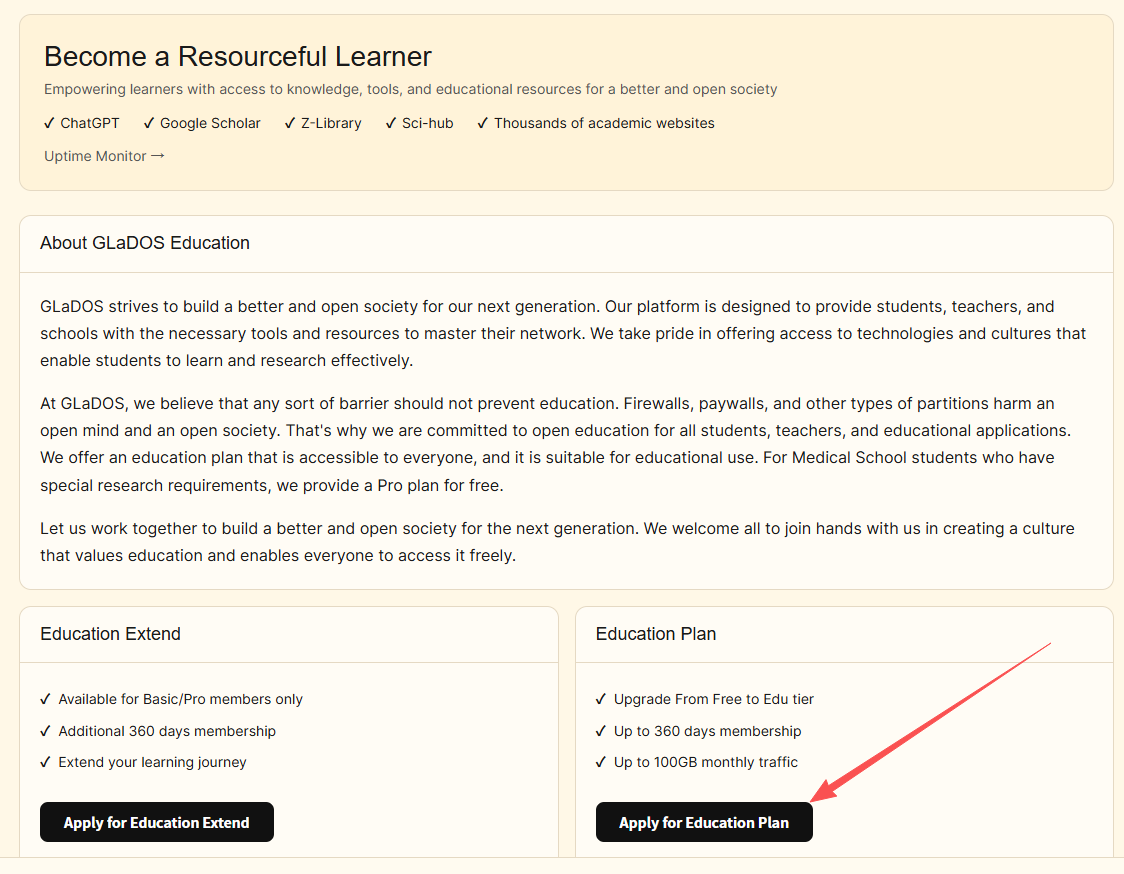
On July 4, 2026, screenshots shared by @jaylenngx showed Education Extend and Education Plan. The page mentioned up to 360 days and up to 100GB of monthly traffic. Those are dated screenshots from one account. The public GLaDOS home page does not currently expose the full education terms, so this guide does not treat the numbers as an ongoing promise.
02 | Ask Muse to build a table of what can be verified now
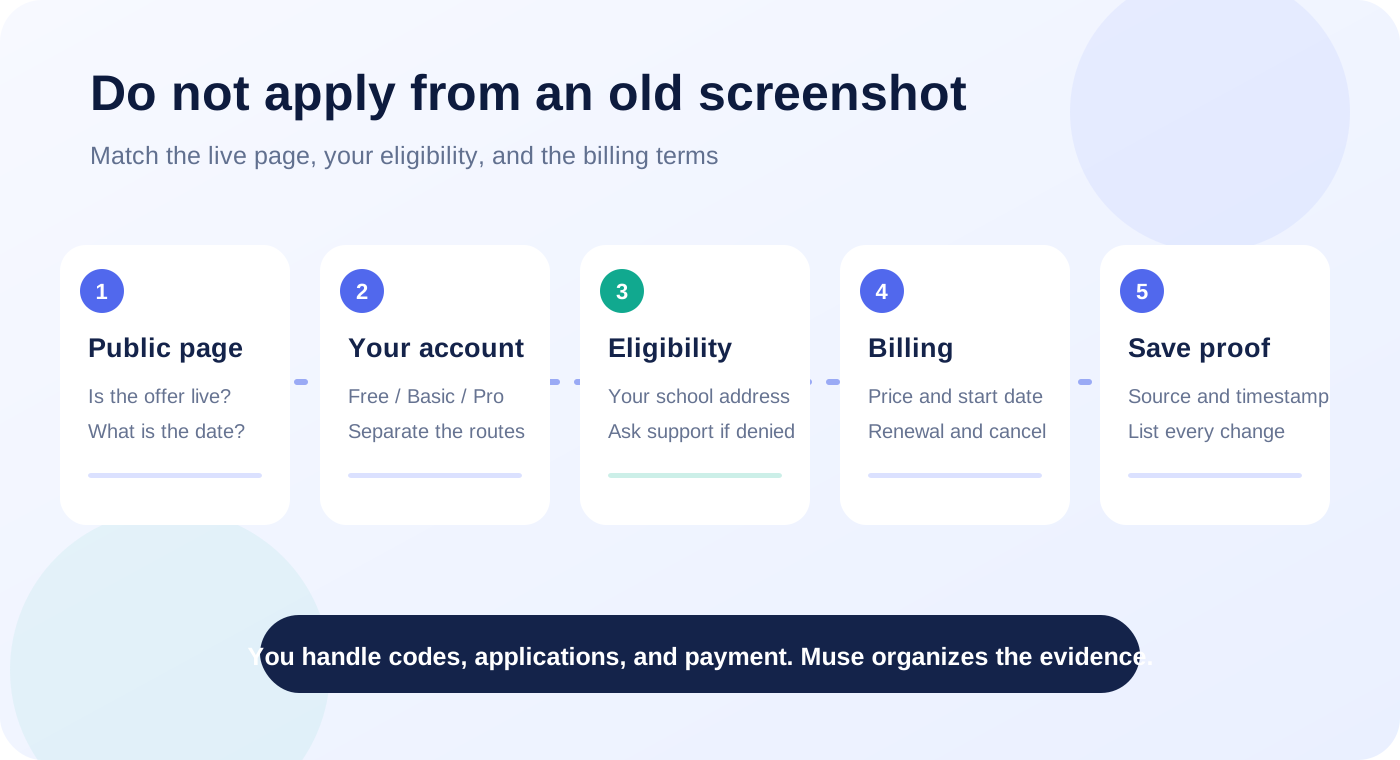
Give Muse the current public page, screenshots from the Education screen in your signed-in account, and the old tutorial image. Ask it to list eligibility, accepted institution or email rules, benefit duration, monthly traffic, any Basic or Pro prerequisite, price, automatic renewal, points, and check-in rules. Every row should name its page and date.
Mark anything absent from the page as “not stated.” When the old screenshot and the live account disagree, preserve both and treat the current account text as the decision point. Muse can organize the evidence, but it should not register, enter a code, submit a school address, or approve an upgrade for you.
03 | Do not confuse the two education options
In the shared screenshot, Education Extend says it is available to Basic and Pro members and adds membership time. Education Plan describes an upgrade from Free to Edu. Both mention 360 days, but their starting requirements are different.
Capture all of the text around each button on your current page. Have Muse compare six fields: current tier, application prerequisite, resulting tier, duration, traffic, and price. A familiar button label does not prove that the terms remain unchanged.
04 | Use only a school address that belongs to you
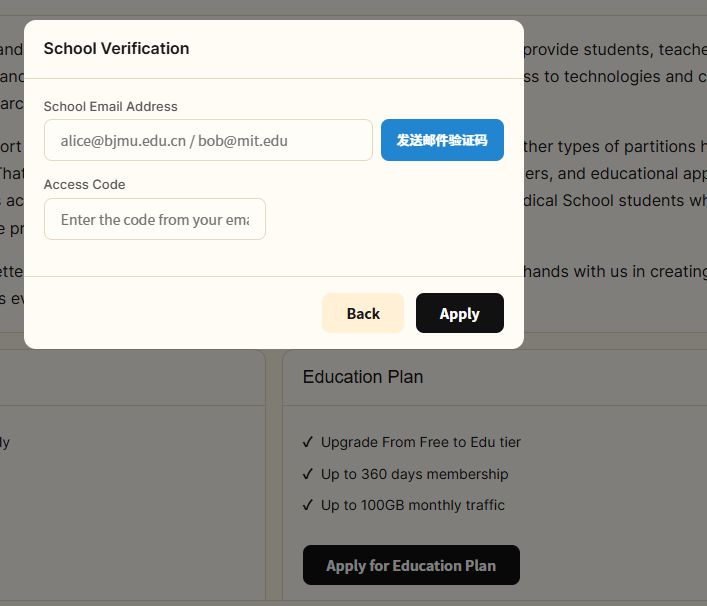
The original application image asks for a school email, an email verification code, and an access code. Confirm the domain, your signed-in account, and the instructions before entering anything. Use an active address officially issued to you by your school, and keep the verification code inside the legitimate form rather than pasting it into Muse chat.
Advice to buy, borrow, or repeatedly rotate education addresses creates identity and account risk and may violate the service rules. If your address is not accepted, stop and look for support guidance. Do not ask Muse to shop for an address, fabricate eligibility, or bypass verification.
05 | One rejection does not define a rule for every country
The author reported that one overseas school address was rejected while another education address worked. That is one application result. It does not prove that all foreign schools fail or that a particular address type always passes.
A rejection could involve an unlisted domain, an existing plan, an expired code, account region, offer availability, or the rules in force at the time. Ask Muse to turn the exact error, timestamp, current tier, email domain suffix, and attempted steps into a concise support question. Leave the cause as unresolved until the provider confirms it, and omit the full address, code, and password.
06 | A success screen may still lead to a paid upgrade
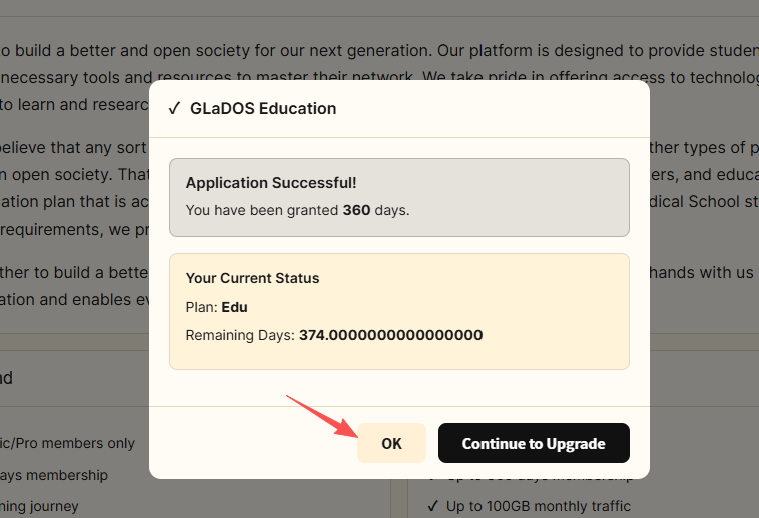
The shared success screen says the account received 360 days and also shows a Continue to Upgrade button. Before continuing, find out whether the next page changes the tier immediately, asks for payment, starts a billing cycle, or enables automatic renewal.
Give Muse a complete screenshot of the confirmation page and ask it to highlight the amount, currency, billing period, effective date, renewal, cancellation route, and refund wording. Stop if any item is unclear. Meta describes purchases as sensitive actions that should require user approval, while the final amount and plan terms still come from the current GLaDOS checkout.
07 | Review check-in, points, and extension rules separately
The original tutorial also discussed check-in points and exchanging points for more time. Reward systems can change with the tier, region, campaign, or account. When the current pages do not state the rule clearly, do not turn “unlimited renewal” into a fact.
Record how points are earned, the exchange threshold, the extension per exchange, any cap, and an expiry date. Avoid automated check-in or point-farming scripts. They may violate the rules and can keep running after the provider has changed the interface or terms.
08 | A prompt you can copy into Muse
Attach the live pages and old screenshots, then adapt the brackets to your account.
- Compare the current public GLaDOS page, the signed-in screenshots I provide, and this dated screenshot from July 4, 2026. Do not register, sign in, enter a school address or code, apply, or purchase.
- Create a table for eligibility, required tier, school-email rules, benefit duration, monthly traffic, price, automatic renewal, points or check-ins, cancellation, source page, and page date.
- Use only text the pages show. Mark missing information as “not stated,” and list differences between the old screenshot and the live page without guessing which old term still applies.
- If verification fails, use the exact error I provide to draft a support question without my full address, code, or password. Do not suggest buying, borrowing, or fabricating an education address or bypassing verification.
- Stop at application, upgrade, payment, or automatic-renewal screens. Show the full amount, tier change, and terms for me to review myself.
09 | Use five checks before you continue
The useful part of the old post is the question it raises, not a shortcut to copy. Verify current eligibility and terms, then decide whether to apply. Stop when a step requires bypassing verification or the price cannot be explained.
- The offer appears in the current official page for your signed-in account.
- You personally meet the eligibility rule and use a genuine, active school address.
- The page states the benefits, duration, and traffic; an old screenshot is not treated as a current promise.
- You have reviewed price, renewal, cancellation, and refund wording before an upgrade.
- You enter codes, passwords, and payment details yourself on the legitimate page; Muse only organizes and checks the information.
References
These sources support the product information in this guide. Musevip is an independent publication and is not affiliated with Meta.
Last reviewed 2026.09.29. Product pages may change.